Volition — A Parody of Destiny
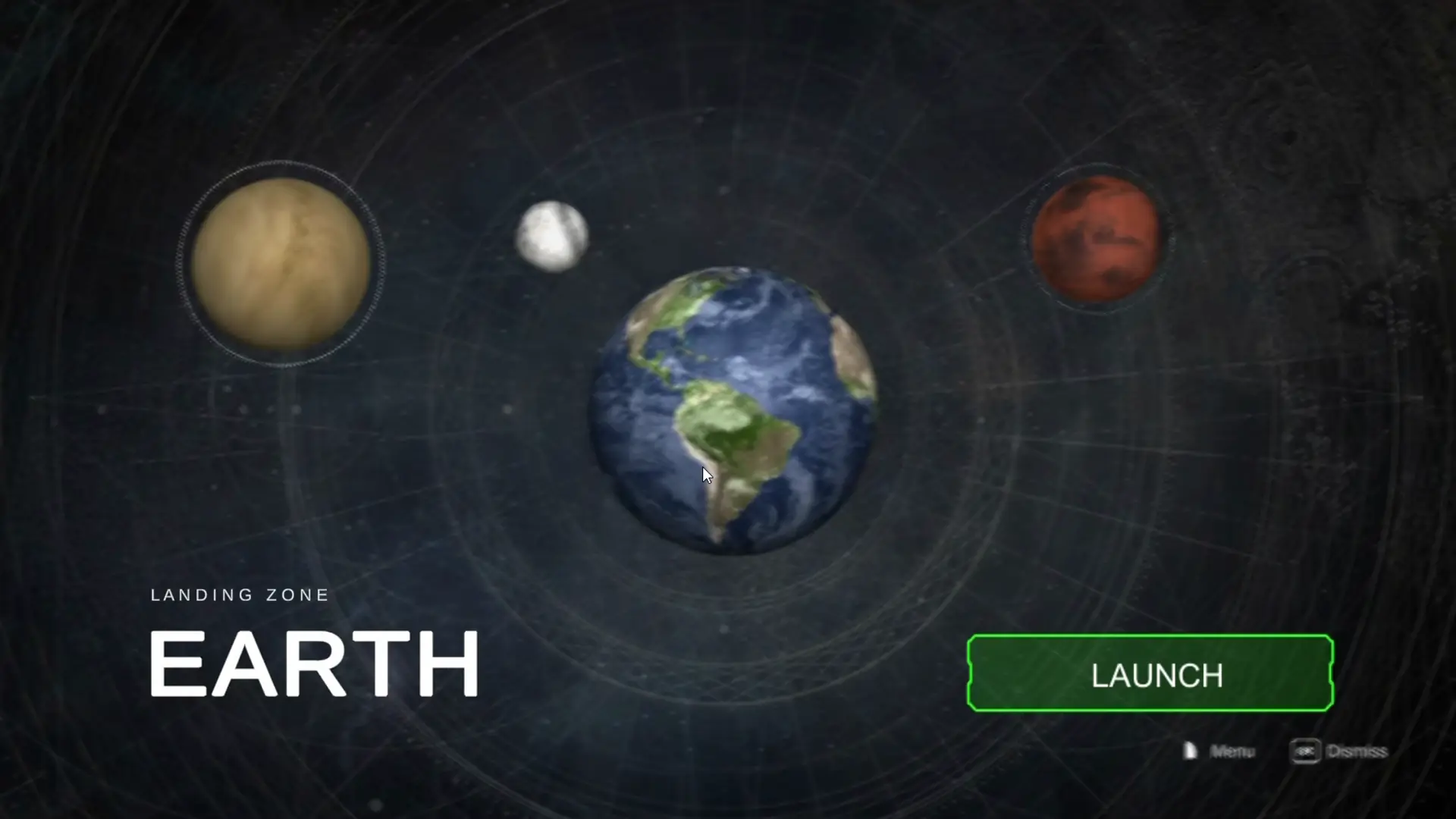
Volition is a homage to Bungie's Destiny. I challenged myself to replicate its iconic Title Screen, Character Selection, and Orbit Scenes in Unity, dabbling in UI, shaders, and light animation. We replicate the transitions, orbit visuals, and class selection flow.
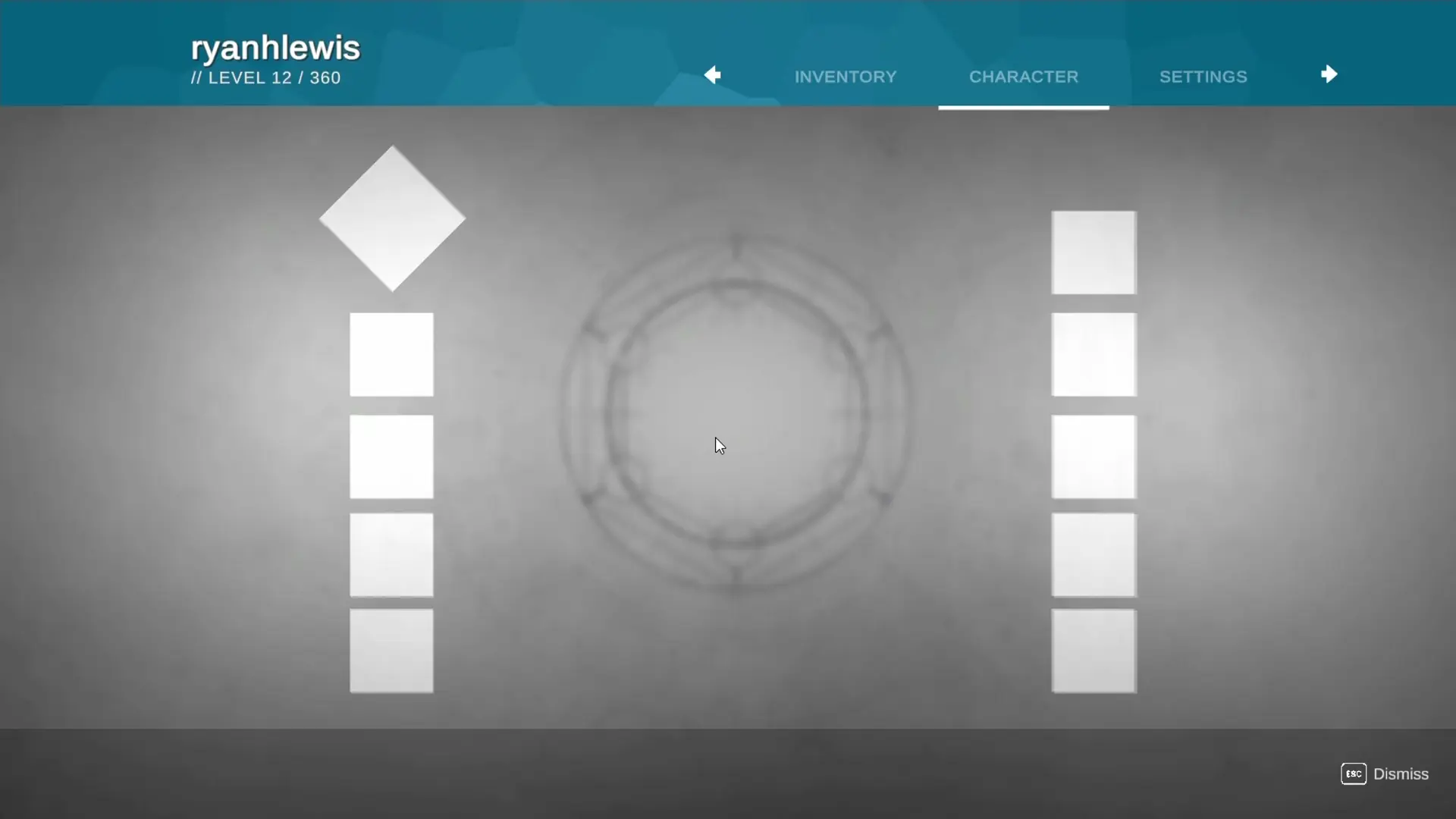
We manage to produce a Destiny-like menu experience with some blur shaders, orbit animations, as well as inventory and planet selection. Of course, this is purely parody; we are not using Bungie assets or affiliated code.
Assets & Credits
Everything here is open-source or self-made. You can find similar textures or free Unity Asset Store goodies, such as planet or dissolve shaders and space skyboxes. I also wrote a custom Gaussian blur for background overlays, letting me fade in and out of UI panels smoothly.
Tutorial Walkthrough
1. Title Screen
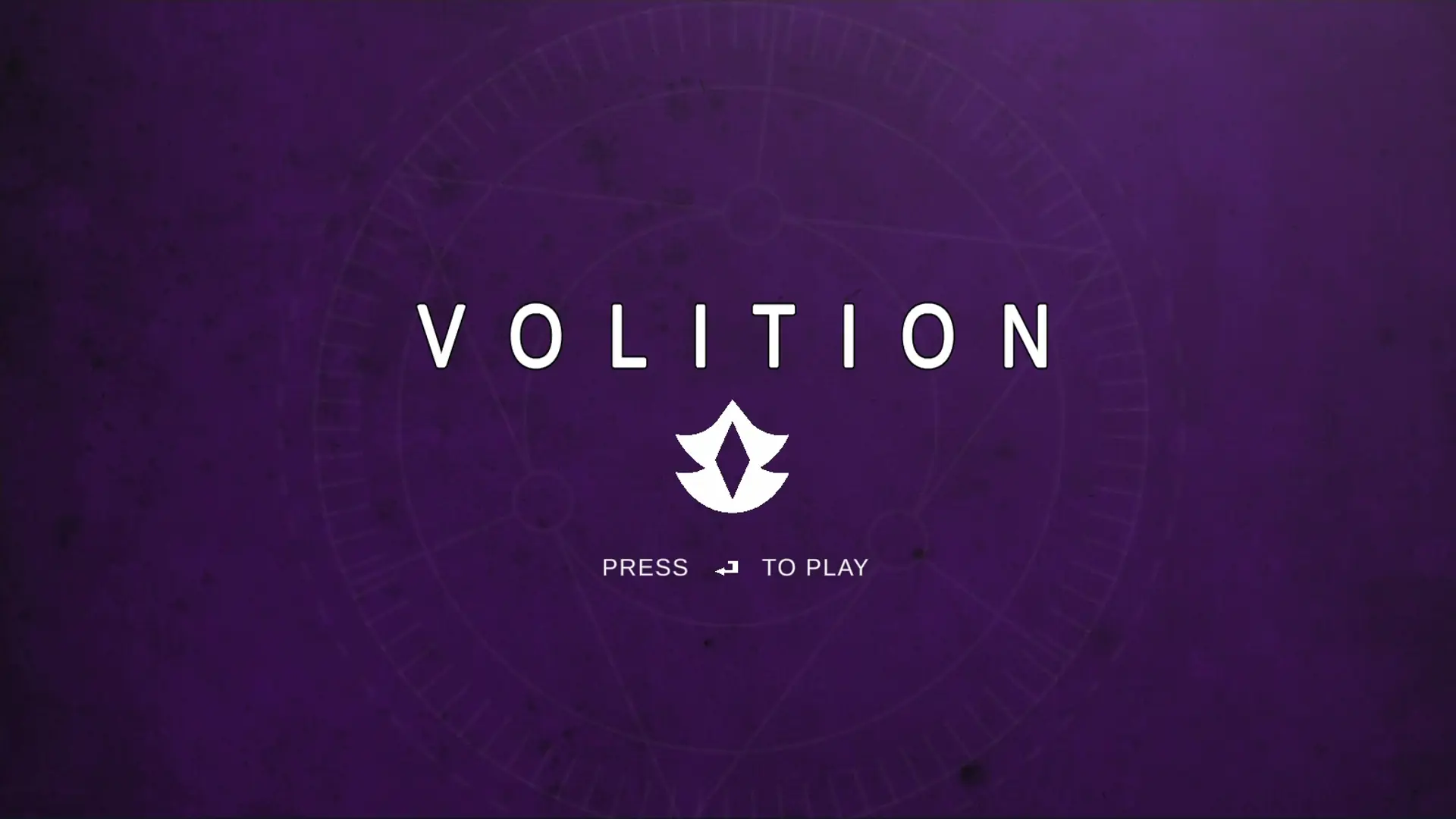
The main screen is a UI canvas with a “Press Enter” prompt. Pressing Enter fades the Title UI out and reveals the Class Selection. If pressed again, it jumps to the Orbit scene. The skeleton:
bool begun = false;

void Update()
{
    if (Input.GetKeyDown(KeyCode.Return))
    {
        if (begun)
            SceneManager.LoadScene("Orbit");
        else
        {
            begun = true;
            ClassScreen.SetActive(true);
            FadeAnim.Play("FadeOutTitle");
            TitleScreen.SetActive(false);
        }
    }
}
2. Class Selection
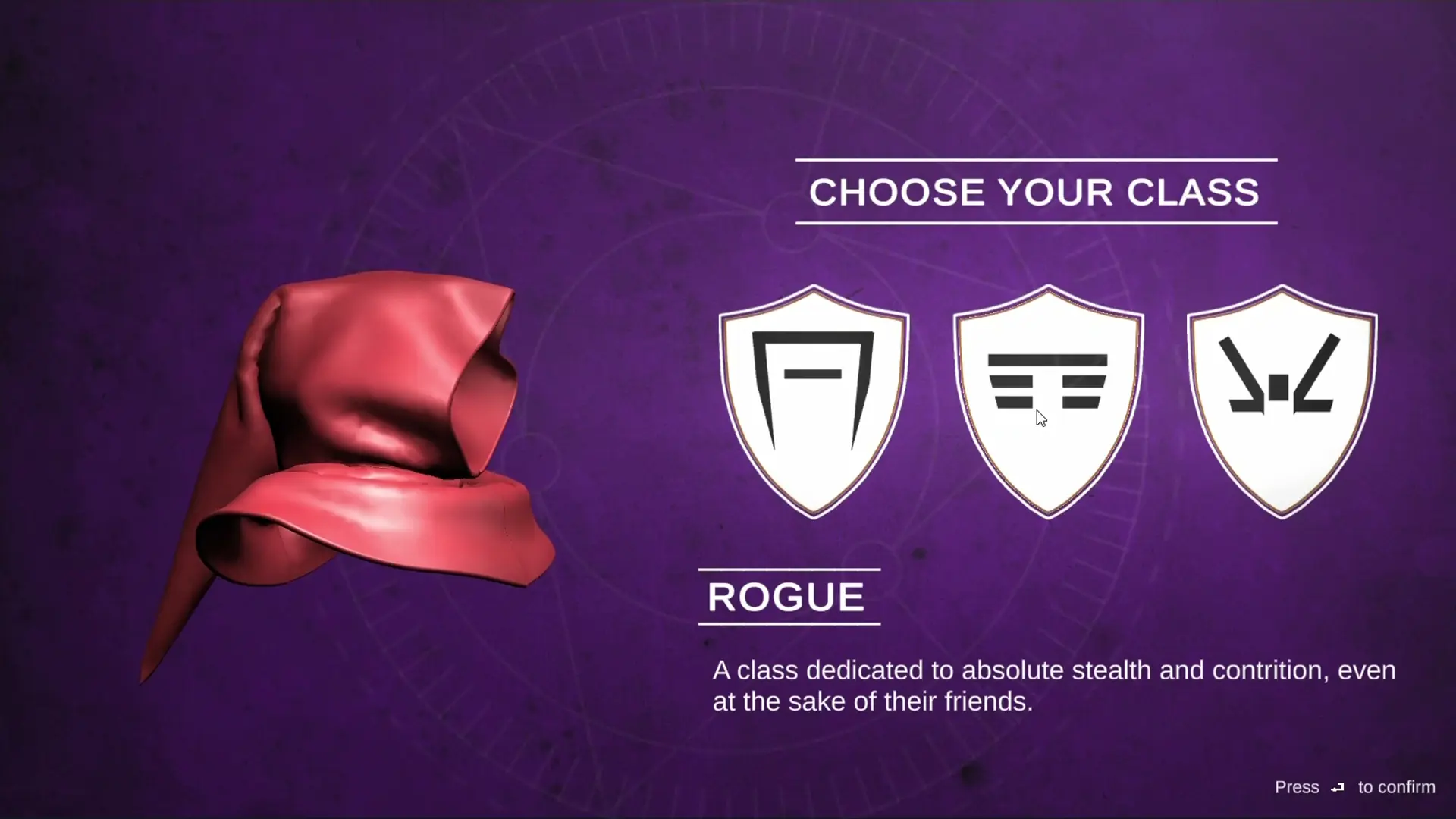
The Class Select screen supports three “hero” archetypes, each with different visuals and text. The code toggles relevant UI states:
if (Input.GetMouseButtonDown(1)) // e.g. Right-click
{
    spaceshipAnim.Play("HideShip");
    MainMenu.SetActive(false);
    SomeOtherMenu.SetActive(true);
    Emblem.transform.SetParent(Camera.main.transform, true);
}
That snippet shifts from the main menu to a secondary UI, hides a 3D spaceship object, and reparents an emblem to the camera transform for a floating effect. This makes it so when you move your mouse, the GUI moves slower than the camera!
3. Orbit Scene
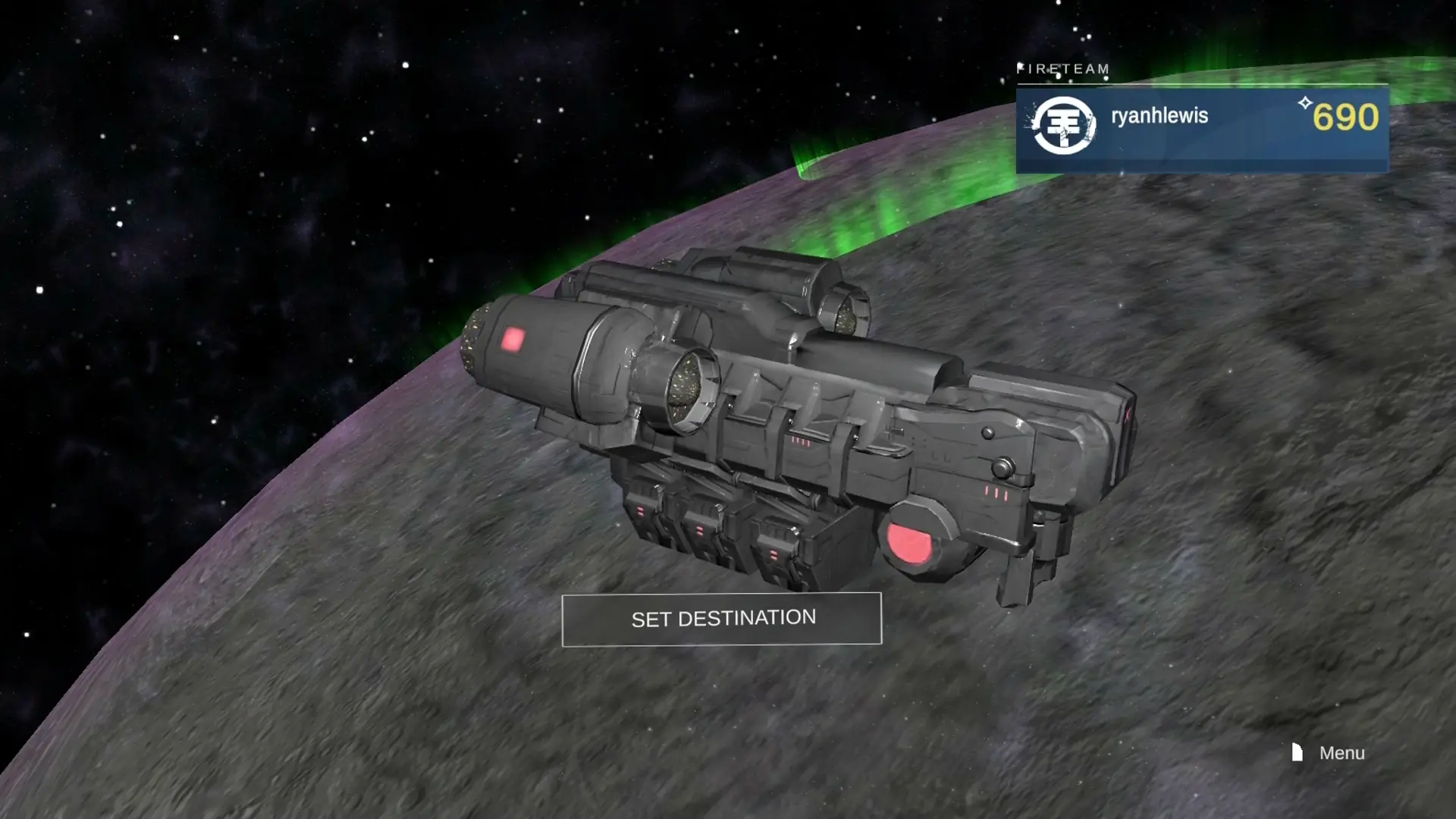
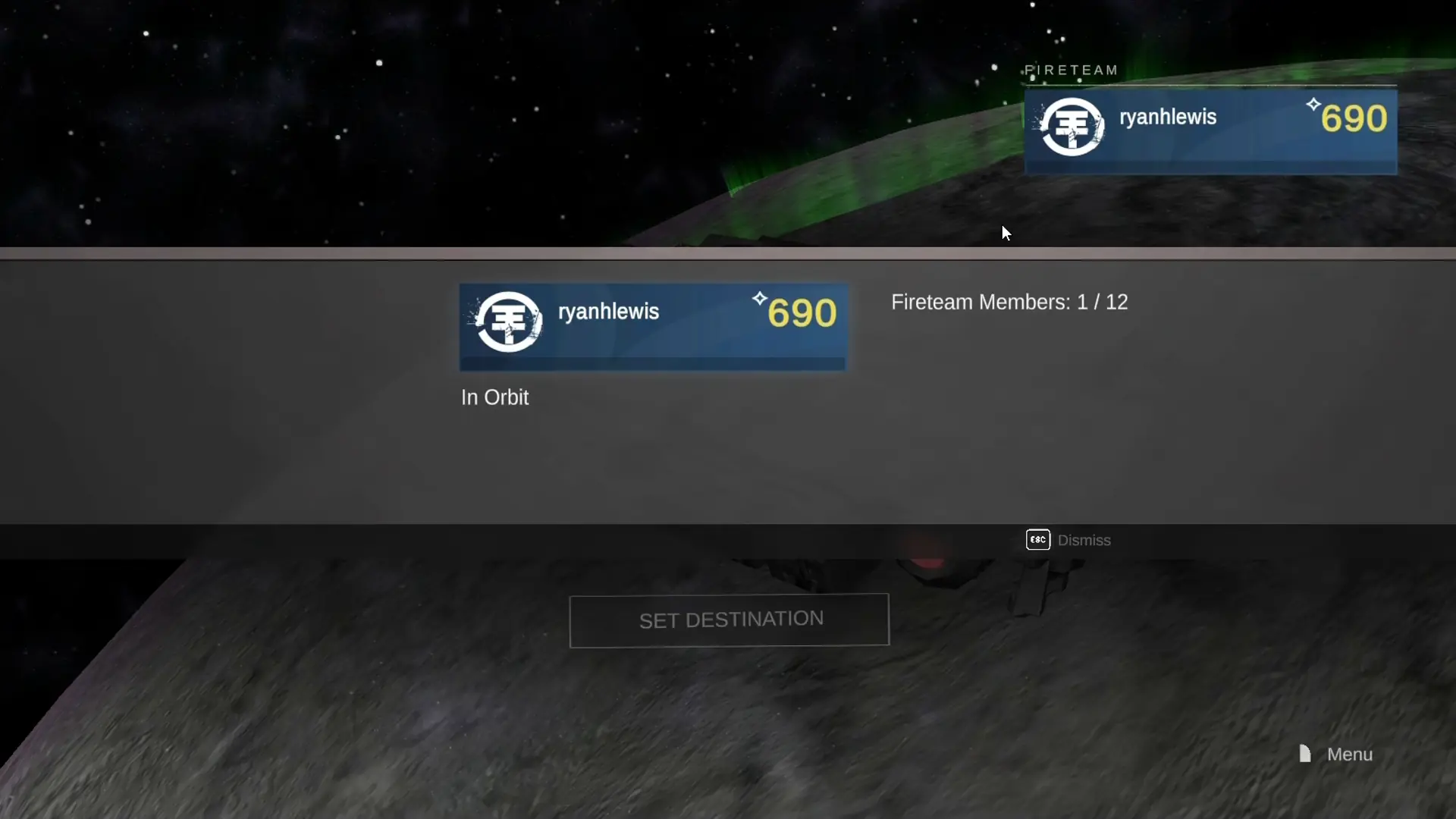
A swirling skybox, rotating planet(s), and a menu to pick a destination. Tab-based UI toggles between Inventory, Character, or Settings. For instance:
if (Input.GetKeyDown(KeyCode.RightArrow))
{
    if (inventory.activeInHierarchy)
    {
        inventory.SetActive(false);
        character.SetActive(true);
        selector.Translate(Vector3.right * 16f);
    }
    else if (character.activeInHierarchy)
    {
        character.SetActive(false);
        settings.SetActive(true);
        background.SetActive(false);
        selector.Translate(Vector3.right * 16f);
    }
}
Key presses shift which panel is open, physically moving a selector object. Planet spinning can be done via a simpletransform.Rotate() or an Animatorcomponent with a rotation animation.
Video
Conclusion
With a little bit of polish, this would probably look decent! Try custom planet shaders, smooth UI transitions, and subtle post-processing to get that feel. Enjoy making your own “Destiny-like” mockups, and don't forget that parody is the sincerest form of flattery—just keep it legal!
Adapt any part of this setup (title screens, fade transitions, spinning planet code) for your own space-fantasy projects. Happy coding!